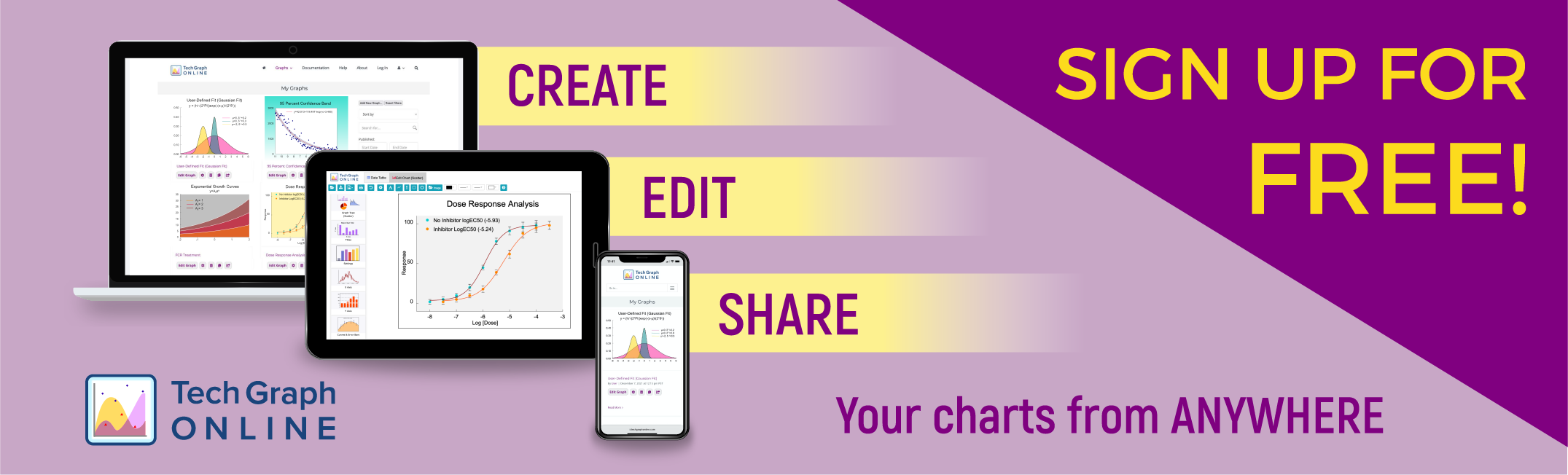
Our Graphing App makes your data look terrific!
You work hard to collect the data for your report, publish your paper, and present to your peers. TechGraphOnline can transform your data into technical graphs that get noticed and remembered. You can count on us to create graphs that communicate your complex data in a clean, concise, and impactful way to your audience.
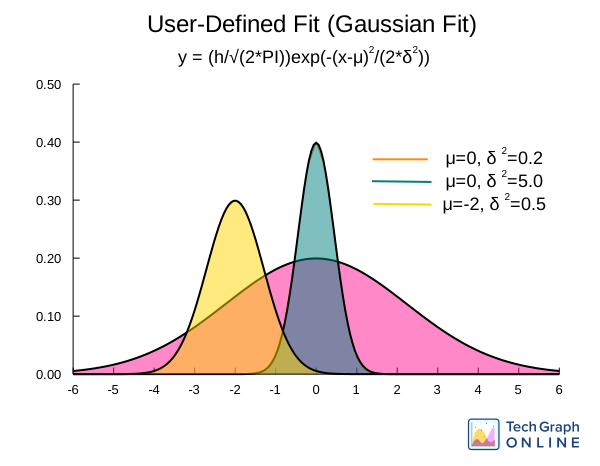
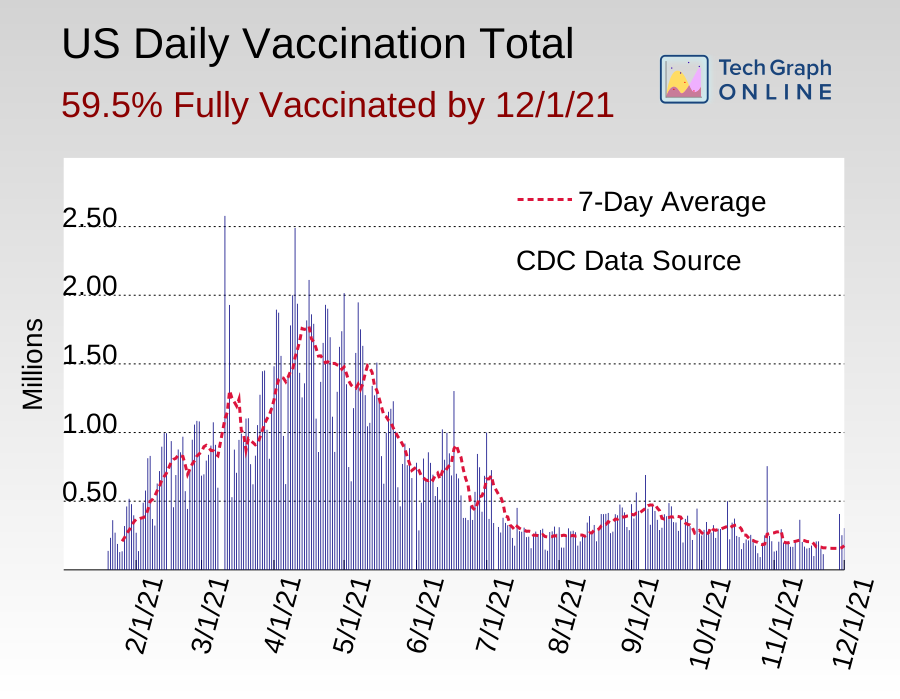
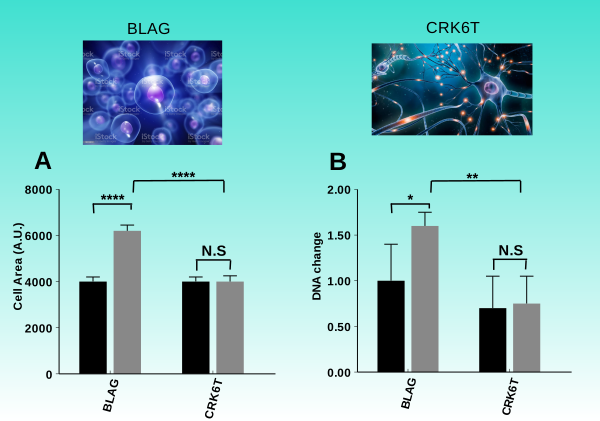
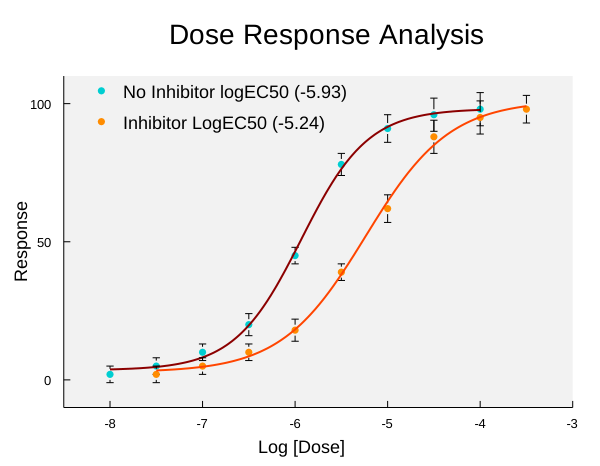
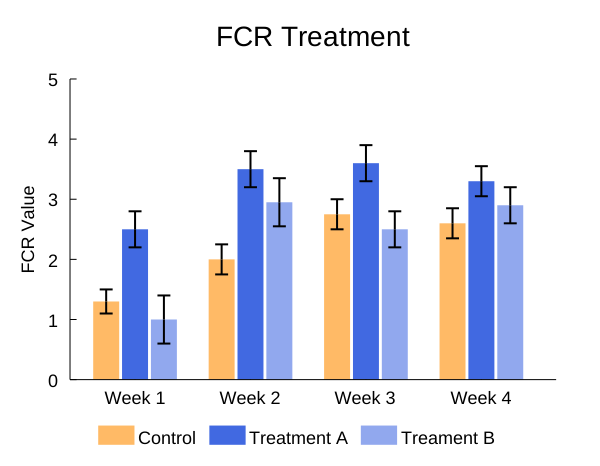
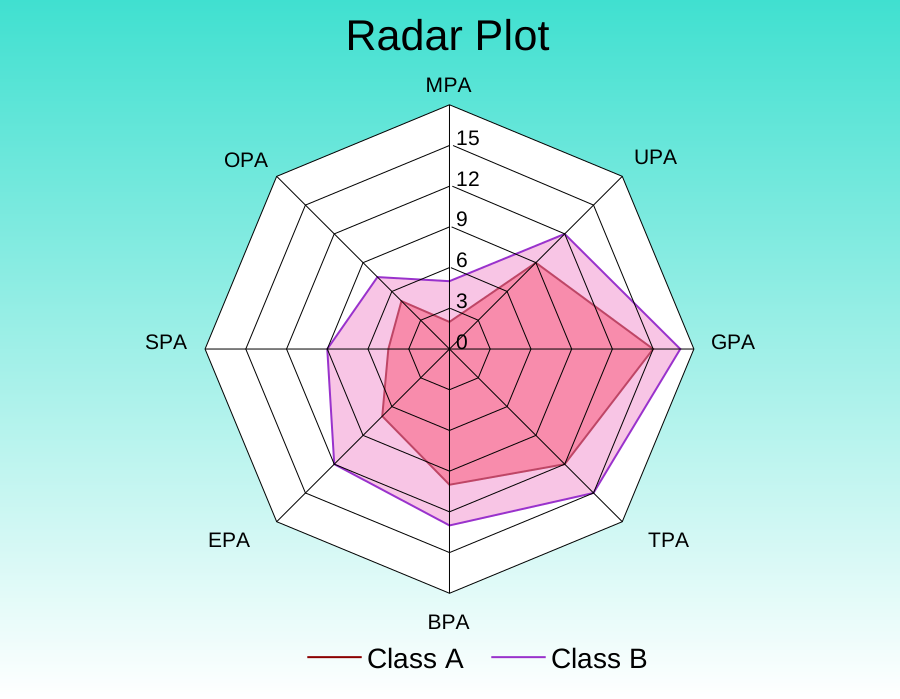
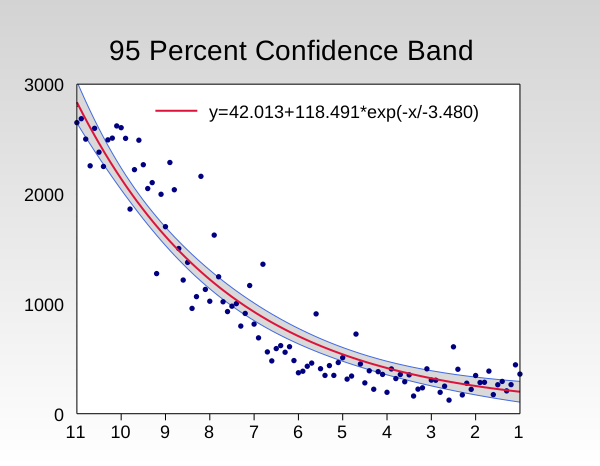
No more pixelated images! The TechGraph sample charts below are made in SVG (Scalable Vector Graphics) image format — ideal for web publishing, it allows scaling of the chart to any size and still creates sharp, crisp images. Charts will not have jagged lines or blurred characters. Compare your results to charts produced by our competitors; you will surely see the difference!



A Graphing App that is Easy to Use and Learn
TechGraphOnline is easy to learn and easy to use. The process to create complex scientific 2D graphs is simple and direct. Yet, you have powerful features and analysis tools to enhance and customize your graphs. Online feature sensitive help is available to provide assistance.

Step 1
At log-on, your personal library of graphs is displayed on the My Graphs page.
To create a new Graph, click on Graphs → Add New Graphs… on the navigation panel to set up an empty graph. Then, click on the Edit Graph button to activate the TechGraph Editor to create your new graph.
Use the following panel buttons to modify an existing graph:
 Edit Graph activates the TechGraph Editor to modify the selected graph
 Properties allows you to attach notes, name the graph, and change privacy settings
 Delete deletes the graph
 Clone duplicates the graph
 Share copies the URL link to the clipboard, email, or via social media
A search option panel to quickly identify graphs by dates, notes, type, and titles is provided.
Step 2
Once you access the TechGraph Editor, your data is shown in the Data Table screen. Enter the data directly, copy/paste data from Excel or Google sheets, or upload a CSV/Text data file from this screen.
Options to fill and transform data columns, linear and nonlinear curve fits, and data analysis are available here.


Step 3
Your graph is shown in the Edit Chart screen. Using the Chart Icons, the graph type, settings, axes options, curve fit and error bar settings, and the appearance of your graph are chosen.
As an example, the X Axis Icon allows you to set the scale (linear, log or probability) of the axis, set the minimum and maximum values of the axes and control the grid settings.
You can quickly customize your graph with annotations, lines, boxes and even images of your company logo. You can resize and move your graph frame, add background colors, and positions of the titles.
Download your graph images as SVG files or high-resolution image (PNG, JPG, TIF) files for reports and presentations.